Categories
- Categories
- All
- New feature
- Improvement
- Fix
- Maintenance
- Announcement
- Coming soon
Updated Mileage from MercuryGate Load XML
When populating the distance into the Loglink Load from MercuryGate XML, we were previously only checking the MasterBillOfLading.PriceSheet.Carrier.Distance. Now we first attempt to populate it from MasterBillOfLading.PriceSheet.Carrier.Distance, and if that doesn't exist, we populate it from the selected customer rate (MasterBillOfLading.PriceSheets.PriceSheet.Carrier.Distance field where the MasterBillOfLading.PriceSheets.PriceSheet.type attribute has the value of "Cost" and the isSelected attribute of "true"). If neither of those are populated, we populate with an internal calculation for distance (in miles).
Tive tracking integration
New service to bring in device location updates from Tive devices.
Bug Fixes and Minor Updates
- Using RingCentral in SmartSource, users were experiencing an issue when a RingCentral call was disconnected by different user or process but would pop up the call log for a user that didn't answer the call. This has been addressed.
- "Cost over tolerance" reasons on SmartSource were not showing the list of reasons in the dropdown and the configuration to turn this feature on or off was not working correctly.
- Adding a team domain, for instance on the integration setup page, was not allowing domains in a format such as domain.co.fr. This has been fixed.
- Smartsource "search loads by location" had a bug that did not allow the search to return results; this has been fixed.
Open request and response details from interaction page
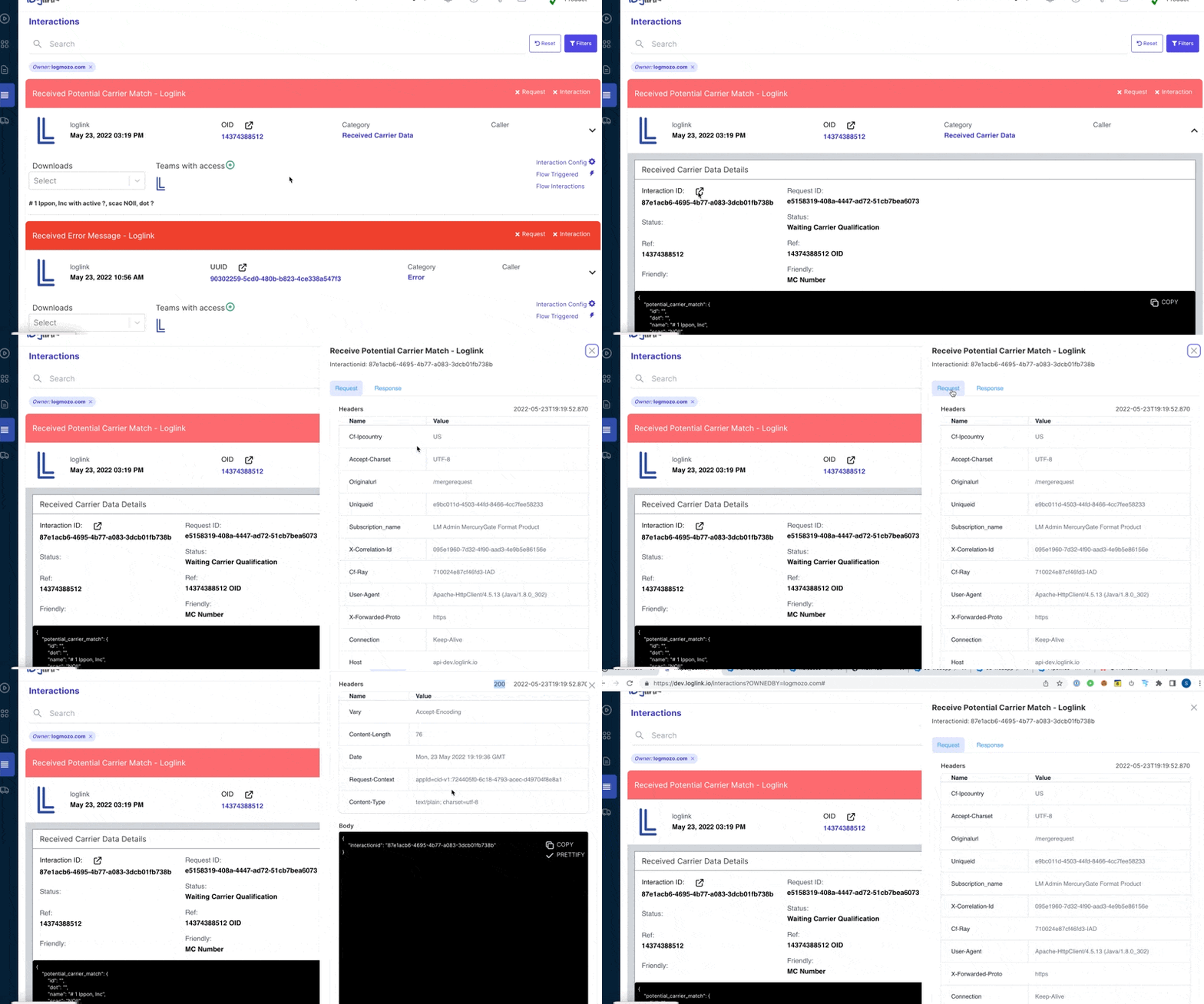
We've always had the ability to view the data that was posted into or received from a call to an integrated service through the "downloads" option on the interaction. However, you could not see the header information that might have been sent with that and it can be somewhat cumbersome to deal with the file downloads.
For now we've kept the option to open the downloaded file, but we also have the ability to show more of the data in a way that's a little easier to access (also, we sometimes store additional file downloads that don't correspond to a single request and response, depending on how the integration is structured).
To see the data with the headers, you can use a new option available within the expandable section which contains the json data:
Open user friendly details view from interactions page.
Because the interactions page is used mainly for troubleshooting and for users that are familiar with integrations, there was only a json view of the data that is stored.
However, some users had requested an easier way to view the most important data without looking at the json view. The target audience for this might be an analyst who is less technical but who would like to see the associated stored data.
We've now added a new feature that will allow the user to see a more "friendly" view of the stored data (however, this view does not necessarily show *all* of the data that could be stored, but just the most important details).
Clicking on the "open" icon next to the reference number and type will show the friendly view